
Steps to Create a GMB Profile With No Physical Address
Here’s the step-by-step process to create a Google My Business (GMB) profile without a physical address:
1. Sign in to Your Google Account
If you do not already have one, create a Google Account using an email address associated with your business.
2. Visit the Google Business Profile Websites
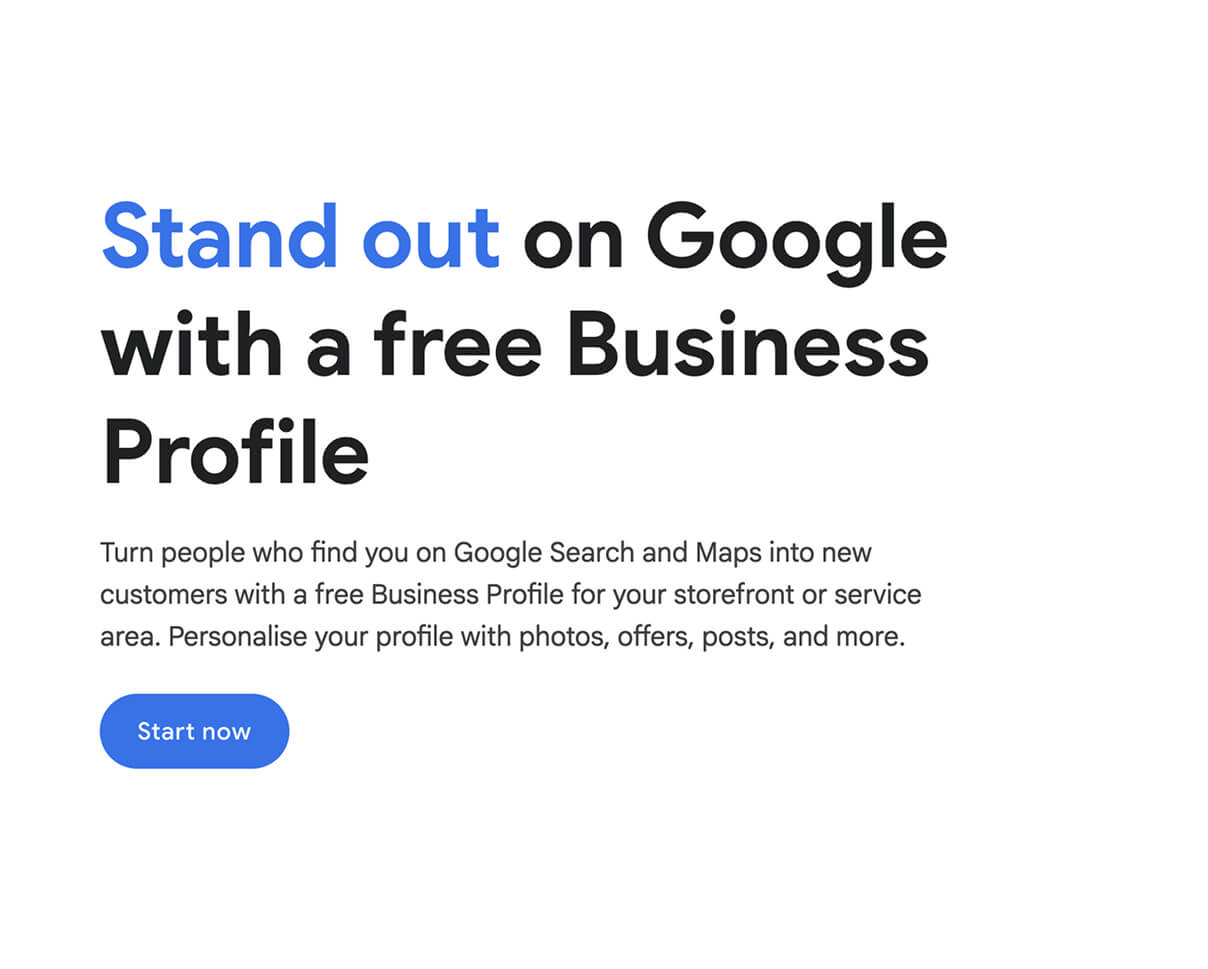
Go to the Google Business Profile website and select “Start now.”
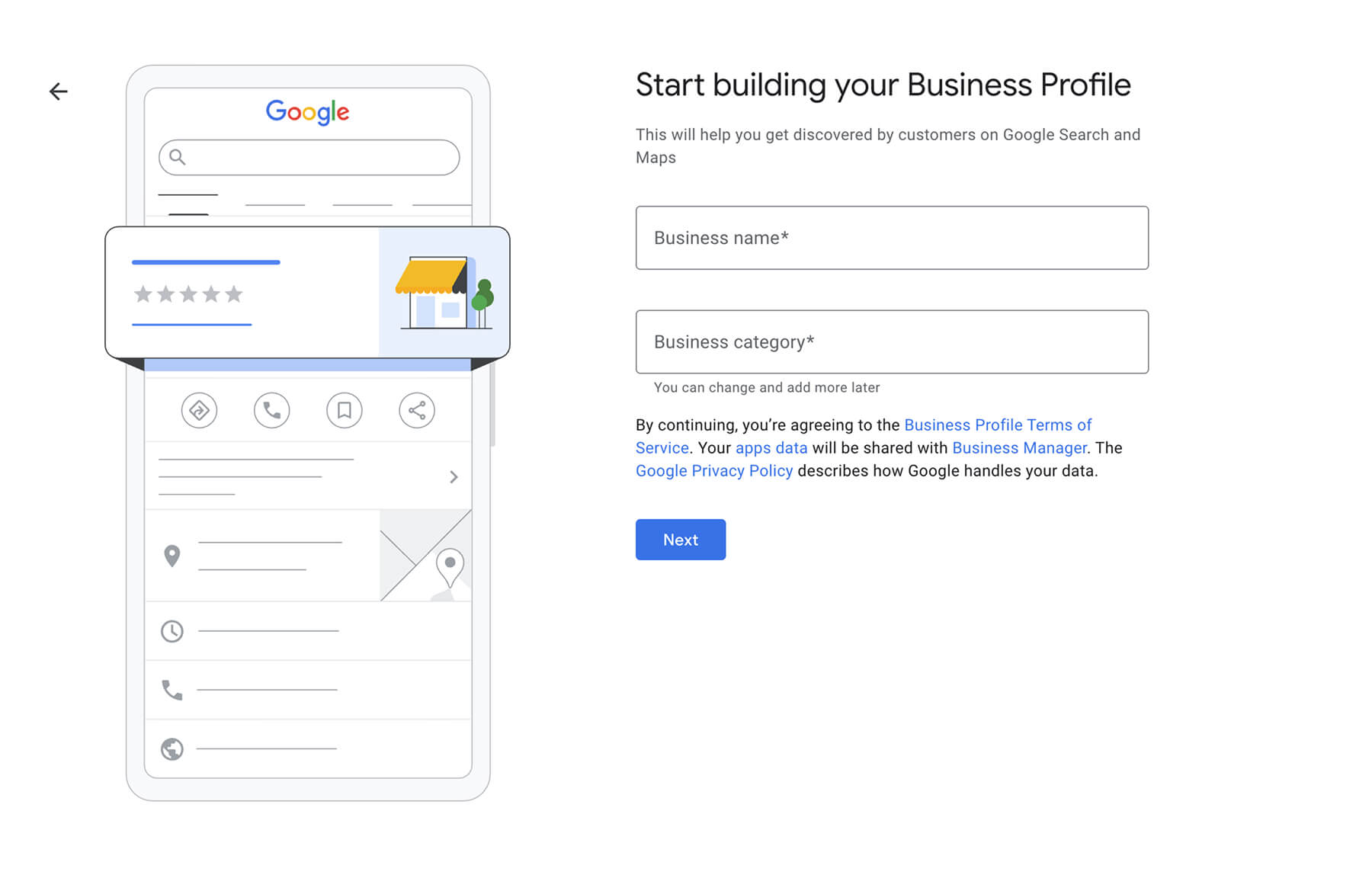
3. Enter Your Business Name and Business Category
Use your official business name. For service-based businesses, make sure the name clearly represents what you do.
Select the category that best matches your services. This helps Google connect your business with relevant searches.
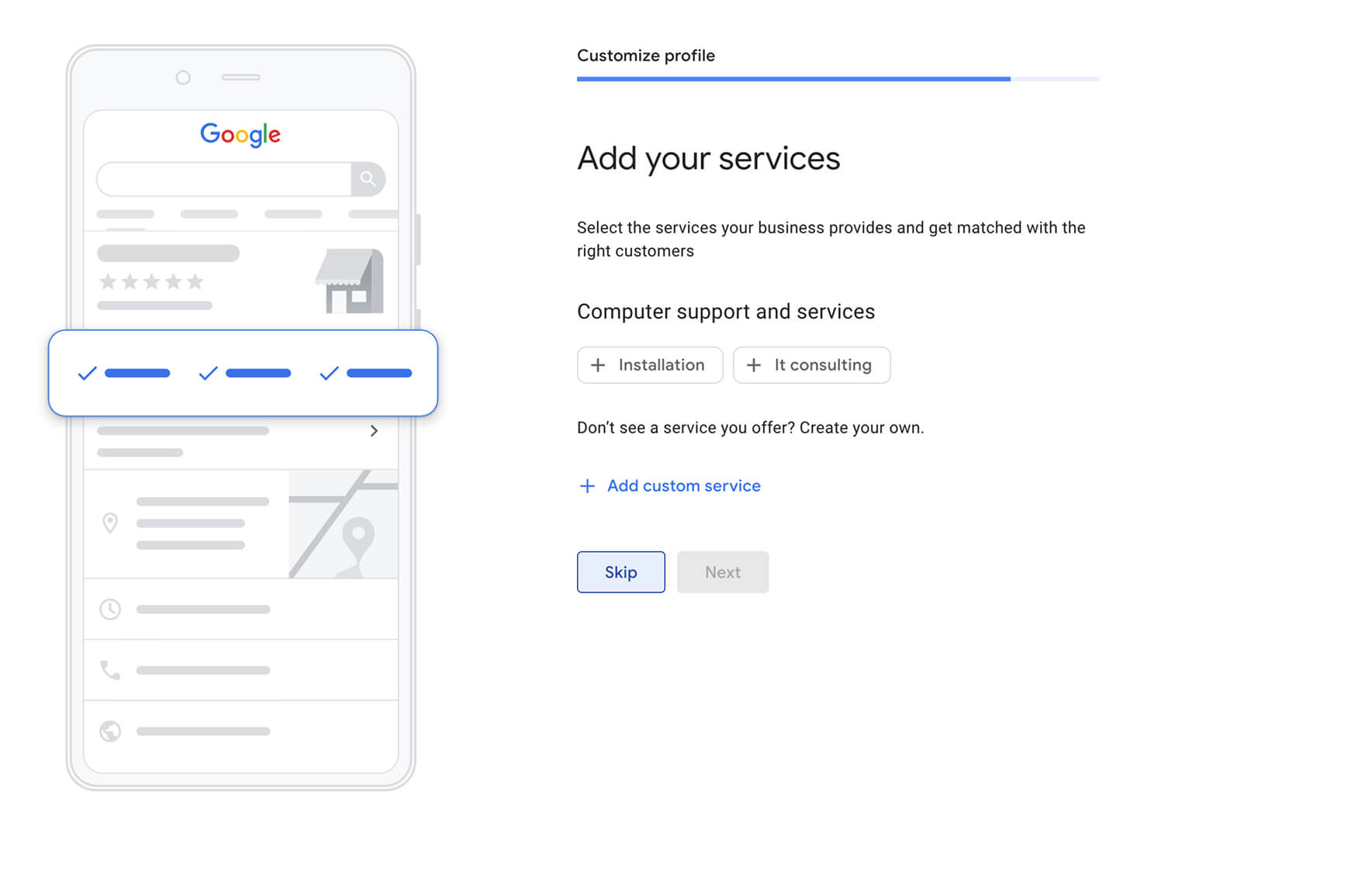
If you are doing local SEO for a managed service provider (MSP) then select: Computer support and services
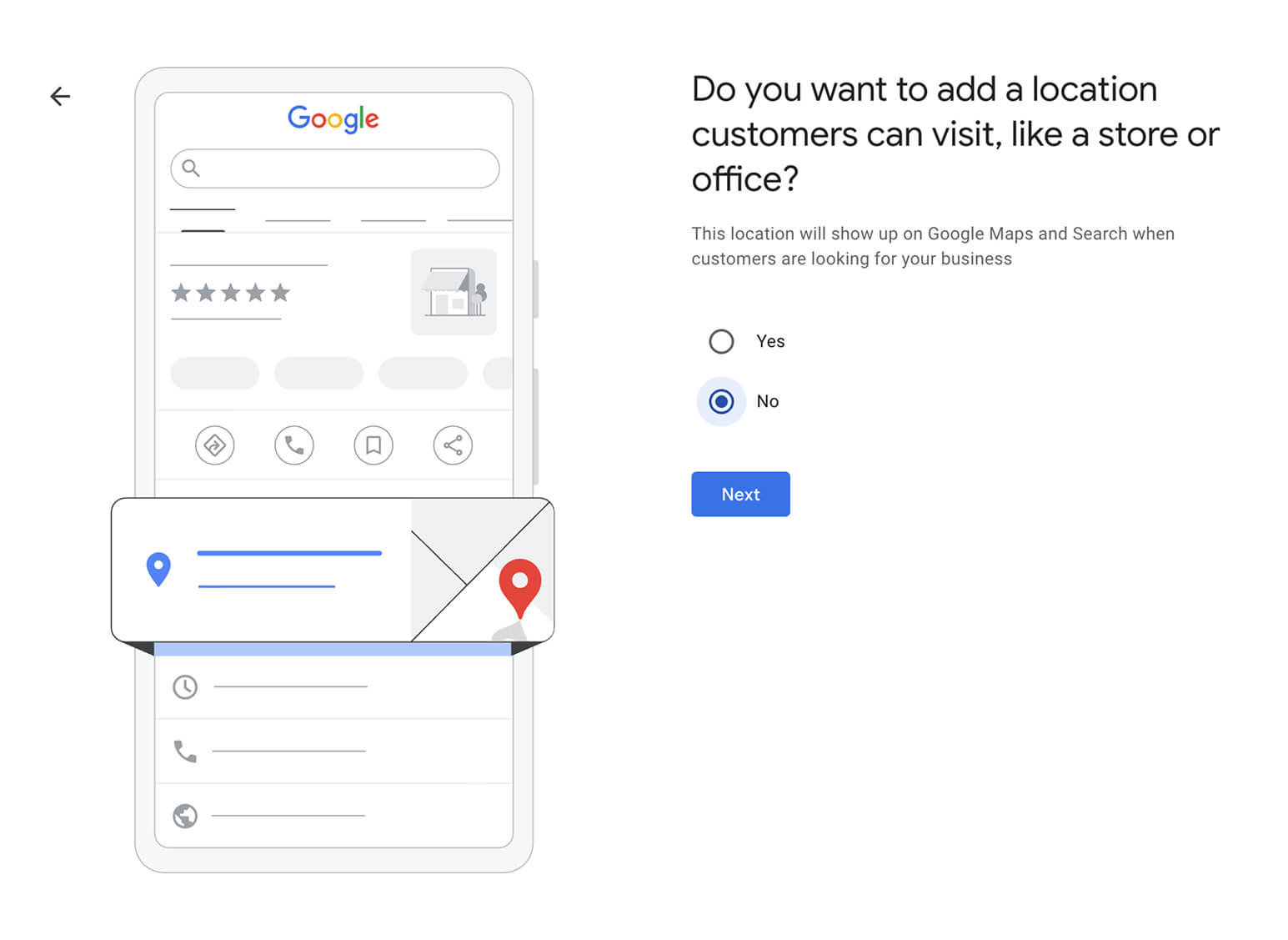
4. Add a Physical Location
When asked if you want to add a location customers can visit, select No.
This tells Google you are a service area business.
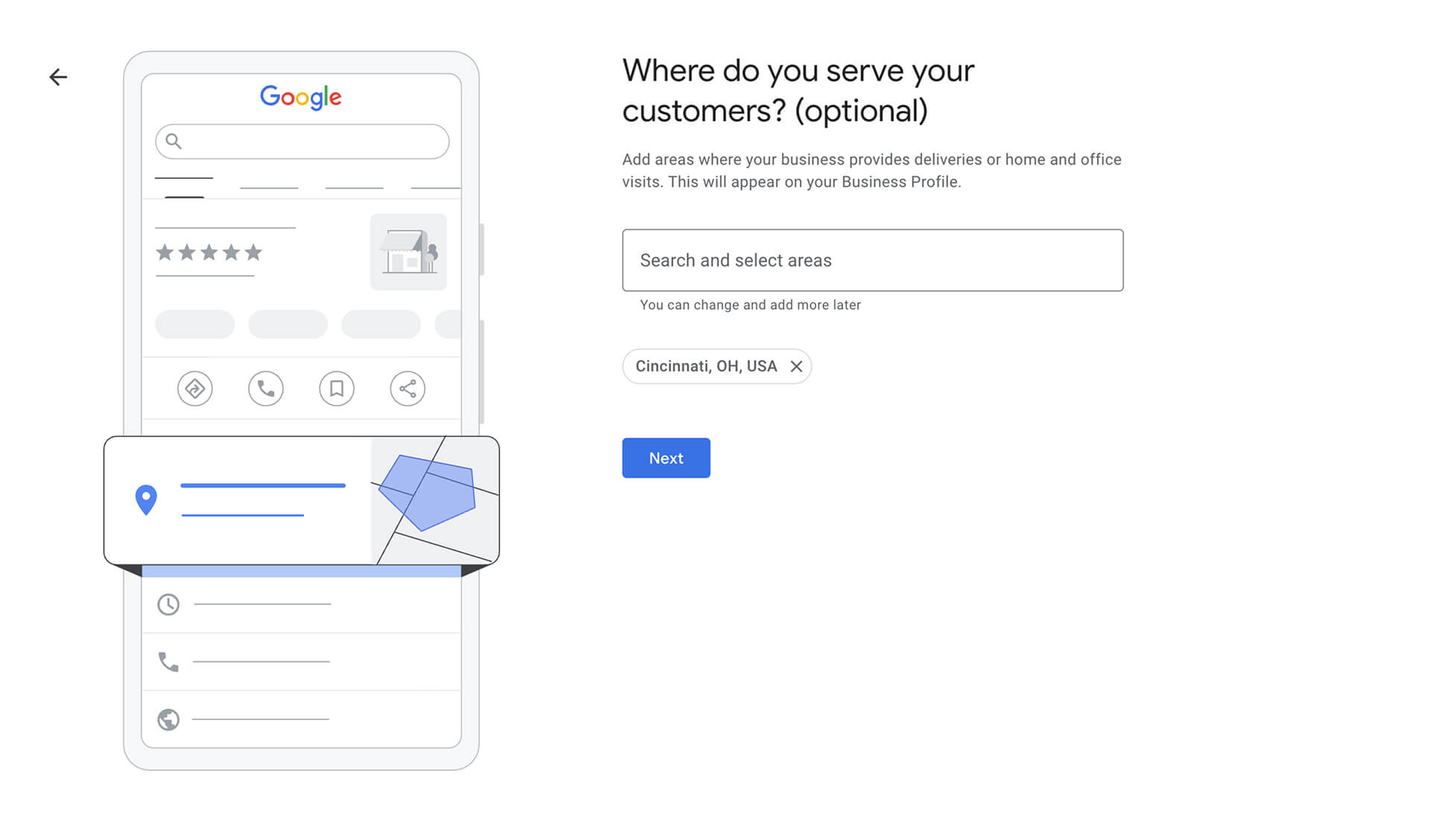
5. Define Your Service Area
Add the primary city where you serve customers. You can expand service areas later if needed.
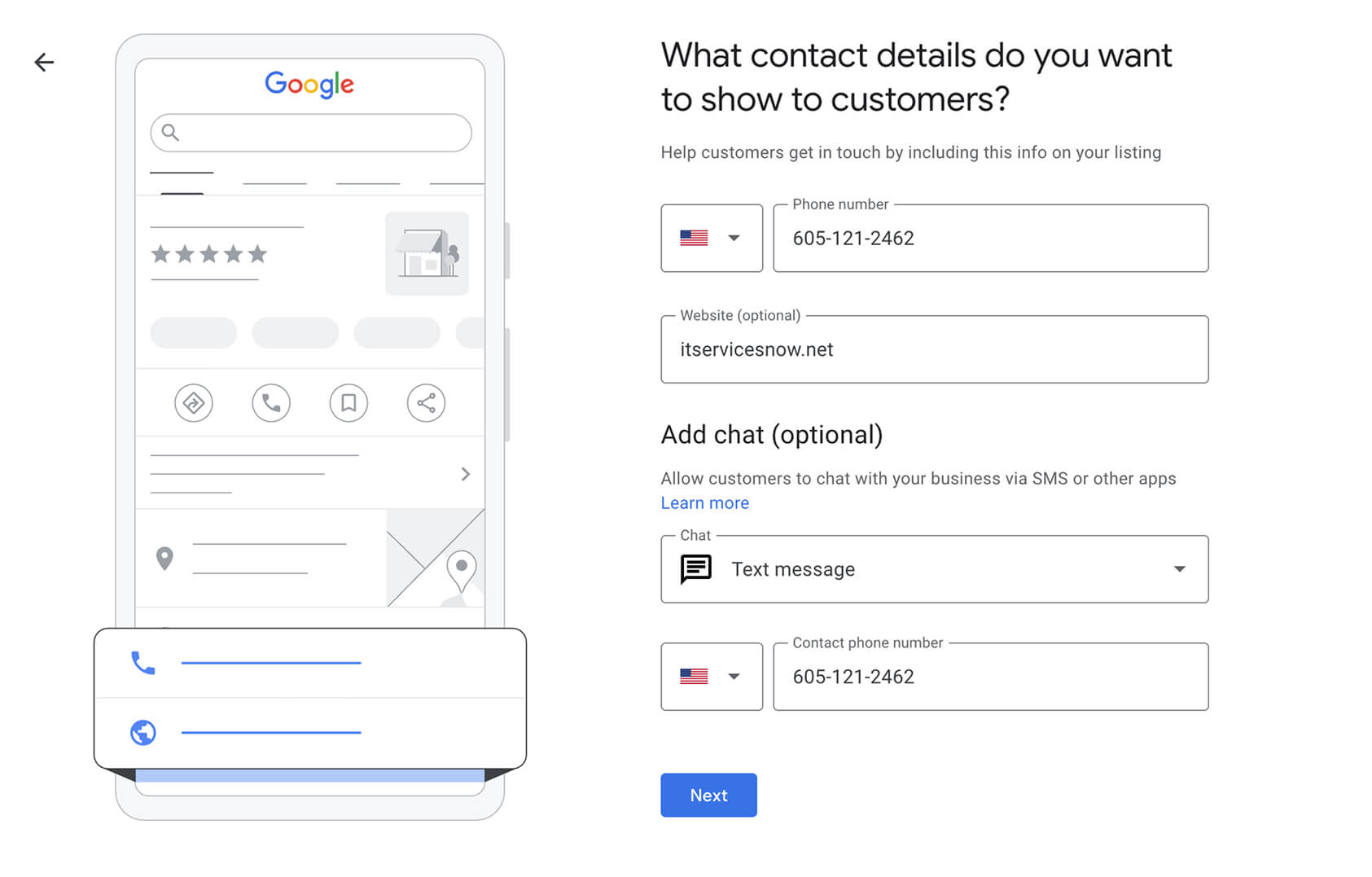
6. Add Contact Information
Choose which contact details to show customers:
- Business phone number
- Website URL
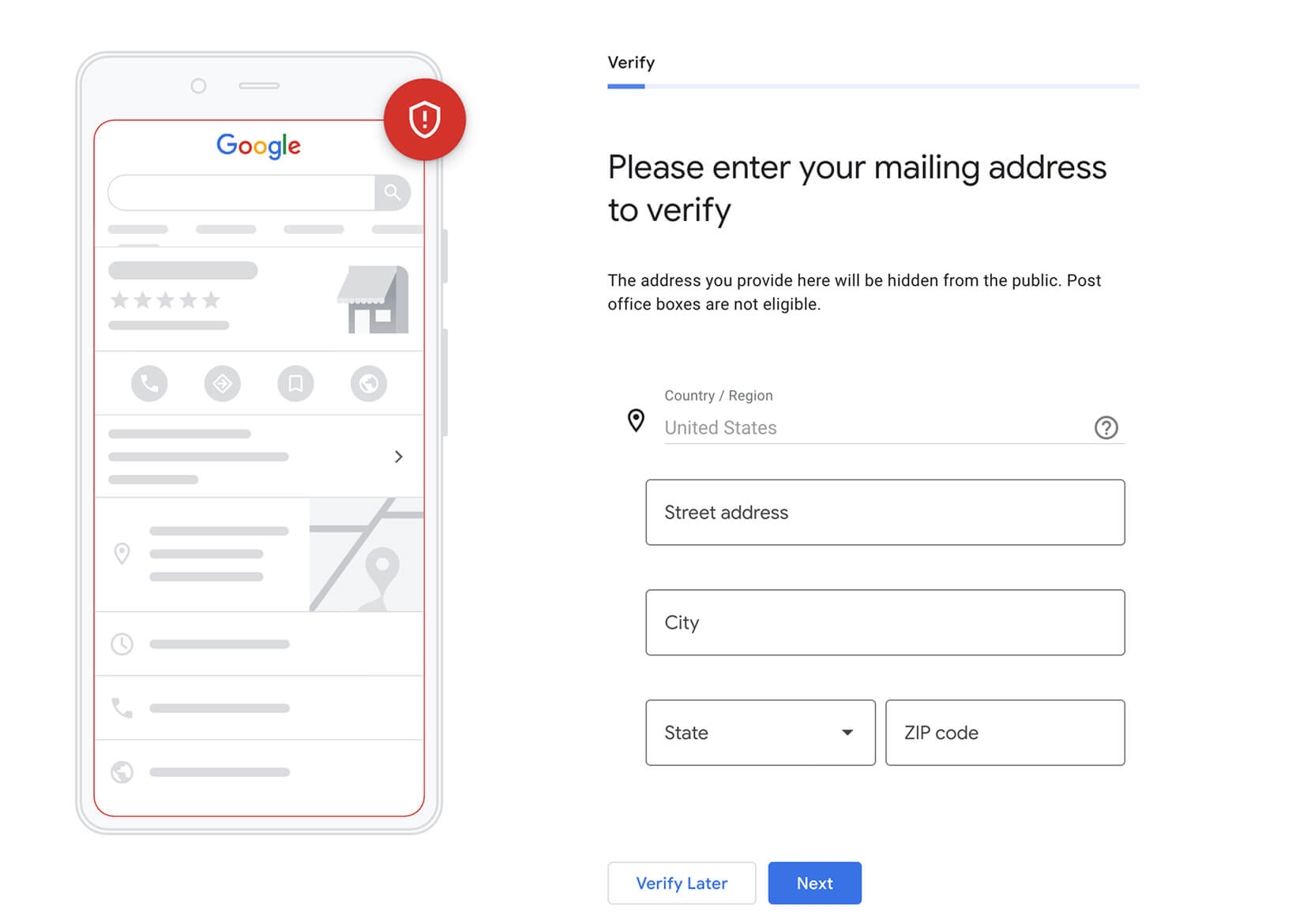
7. Enter a Mailing Address for Verification
You will need to provide an address for verification purposes. This address does not have to be publicly visible. You can hide it later. If you prefer not to use a home address, you may use a PO box or mailing address.
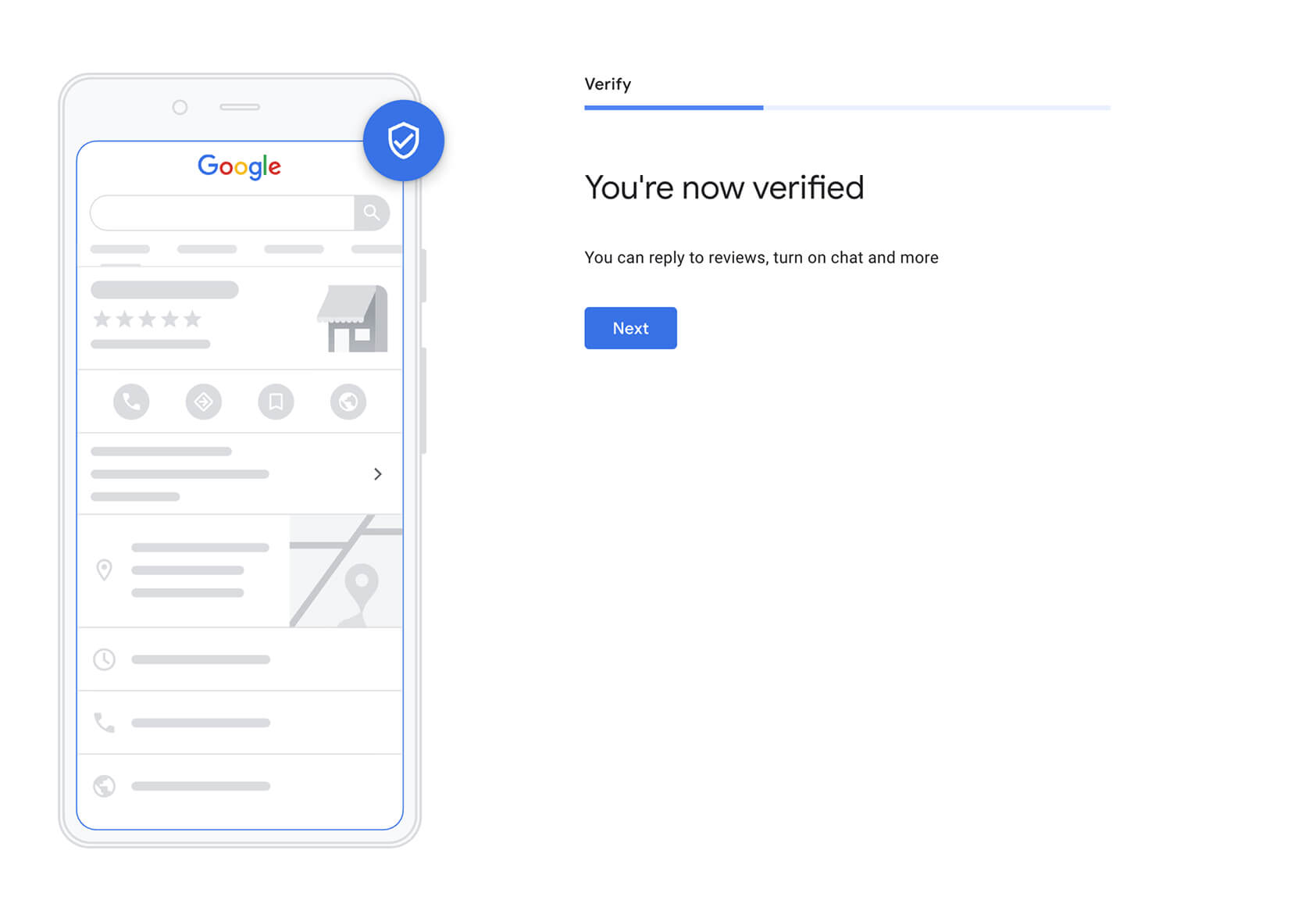
8. Verify Your Business
Choose one of the available verification methods:
- Phone verification code
- Email verification code
- Business video verification
9. Add Your Services
Select all the of the services you offer from Google’s dropdown menu
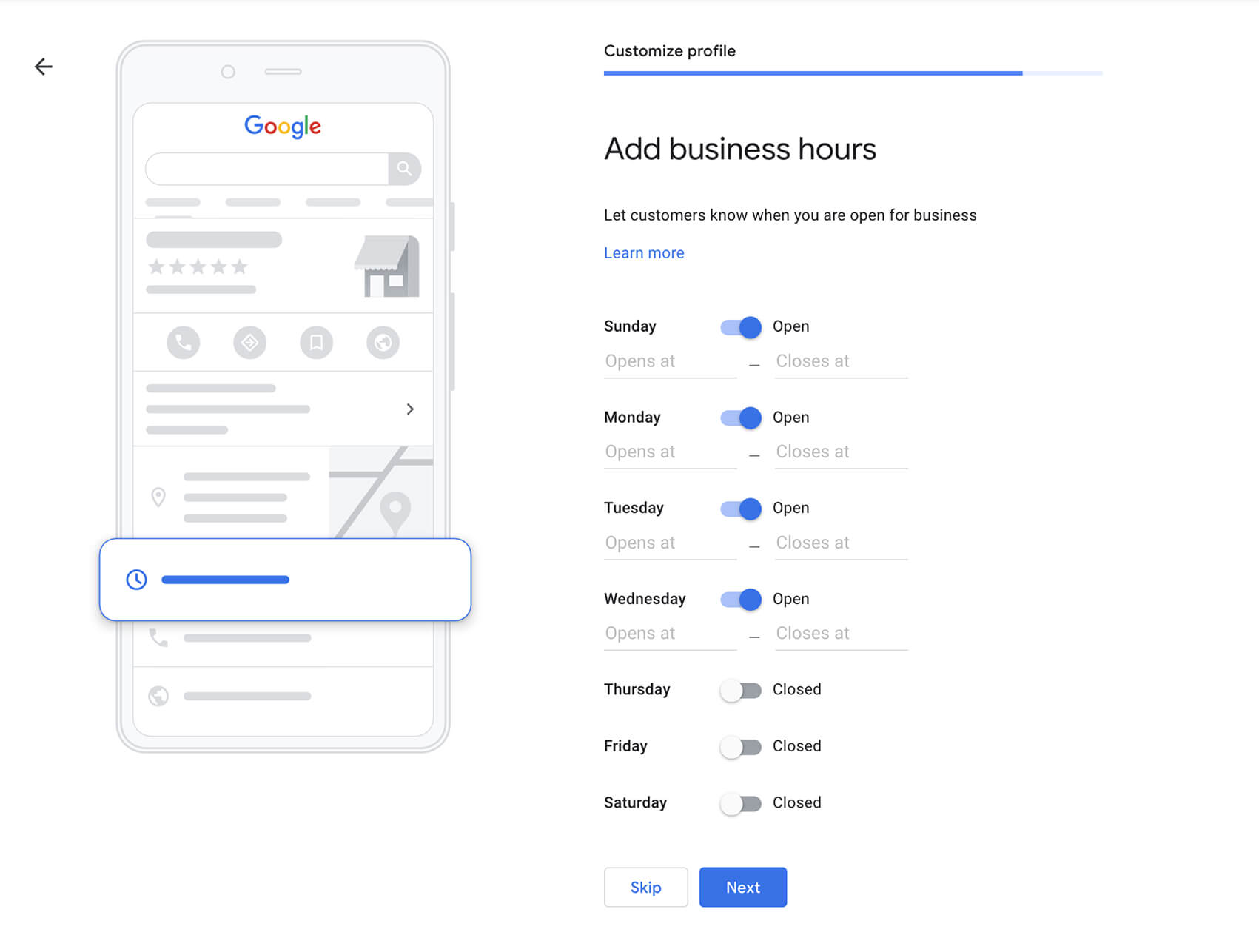
10. Set Your Business Hours
Select all the of the services you offer from Google’s dropdown menu
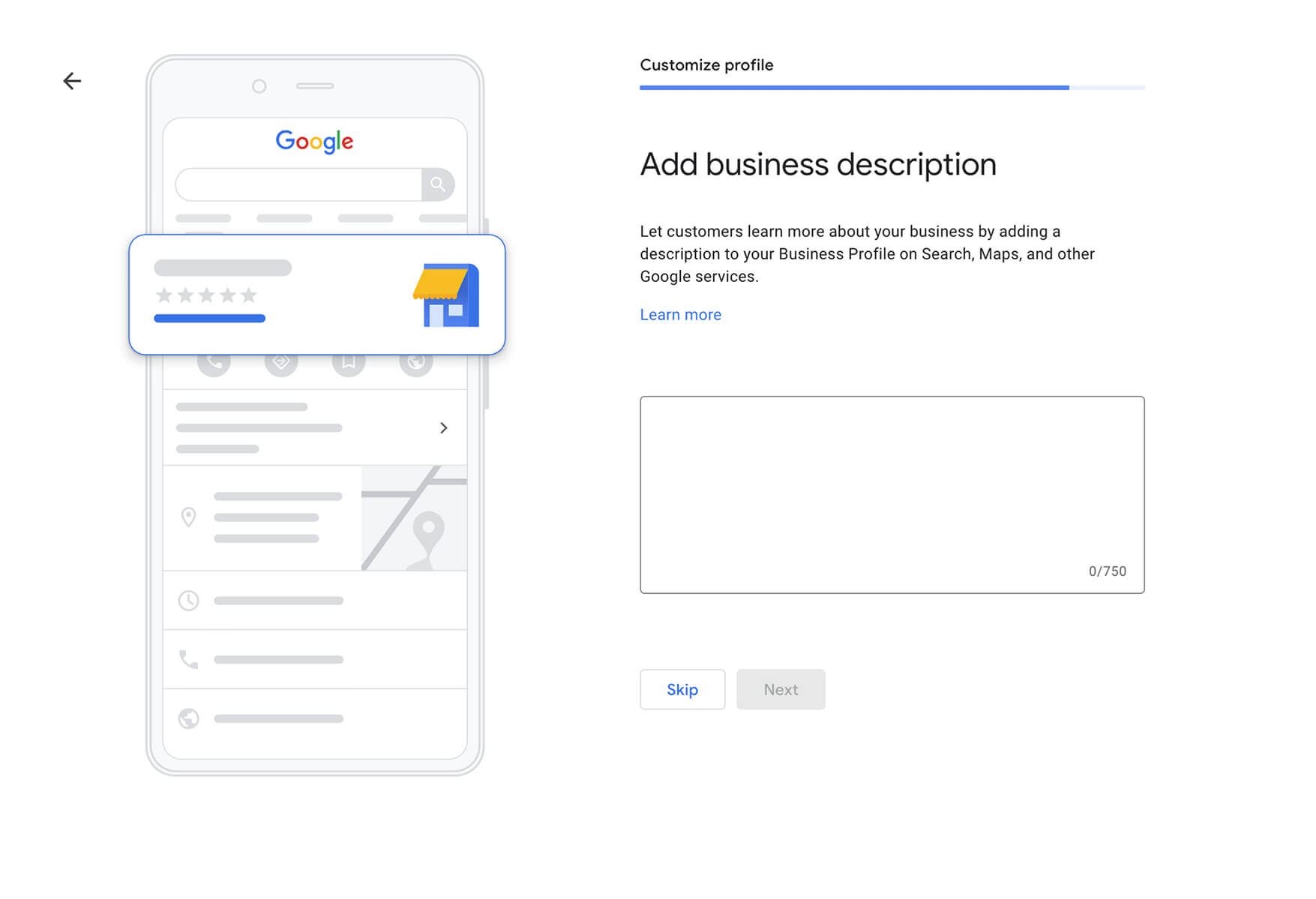
11. Add a Business Description
Select all the of the services you offer from Google’s dropdown menu
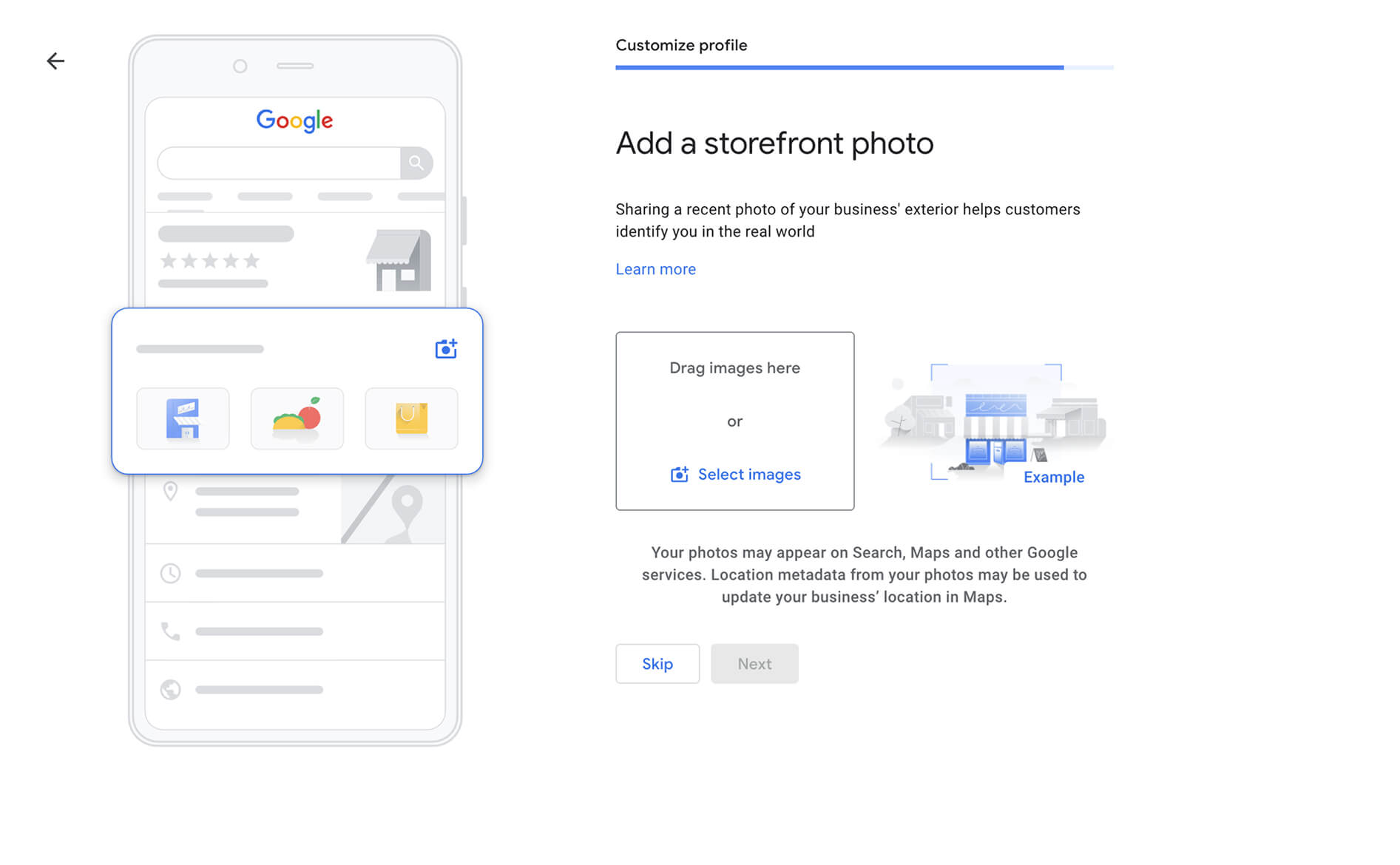
12. Add a Storefront Photo
Select all the of the services you offer from Google’s dropdown menu
Key Optimization Considerations
- Do not list service cities more than 20 miles from the mailing address you provided
- Optimize business hours. More available hours can increase visibility and preferences
- Select up to nine relevant subcategories to fully describe your services
For a full list of optimization suggestions checkout our Google Business Profile Optimization Checklist for 2026.
How to Hide Your Address on Google My Business
Once you have successfully created your Google My Business profile, the next step is hiding your address from the public.
Here are the steps to hide your address on your GMB profile:
- Sign in to your GMB profile.
- Click on the Edit profile button.
- Navigate to the Location tab at the top of the pop-up window. Then click on the pencil icon next to the address field.
- Unselect the Show business address to customers to hide your address.
- Click Save. It may take a few days to reflect the changes in your GMB account.
Benefits of Creating a Google My Business Profile without a Physical Address
Creating a Google Business Profile without a physical address lets service-based businesses build local visibility without the overhead or limitations of a physical office. Regardless if you are doing local SEO in Tucson, Arizona, or a major city like Los Angeles in California, you can use this new feature to create a GBP and rank in the local map pack.
Businesses That Do Not Need a Physical Address
Many service-based businesses operate at customer locations or remotely and do not require a storefront. Examples include:
- IT service providers
- Home tutoring services
- Mobile car washing businesses
- Freelance web development agencies
- Online coaches and consultants
- Wedding photographers
- Personal fitness trainers
These businesses can use a service area setup in Google Business Profile instead of displaying a public address.
Do You Need a Physical Address to Rank for Local Searches?
No. You do not need a publicly visible physical address to rank for local search queries.
Adding or hiding a physical location in your Google Business Profile does not directly impact your local rankings. What matters far more is how complete, accurate, and relevant your profile is to searchers.
Your Google Business Profile should clearly communicate:
- The services or products you offer
- How customers can contact you
- Where you serve customers
- Reviews and trust signals
When optimized correctly, service-based businesses can rank well without customers ever visiting a physical location.
Conclusion
In summary, creating a Google Business Profile without a physical address is not only possible, but also highly effective for service-based businesses looking to compete in local search. By properly setting up your service areas, optimizing your profile details, and maintaining accurate, relevant information, you position your business to appear in front of high-intent local searchers. More importantly, your Google Business Profile becomes a powerful extension of your broader content marketing strategy.